
External Storages
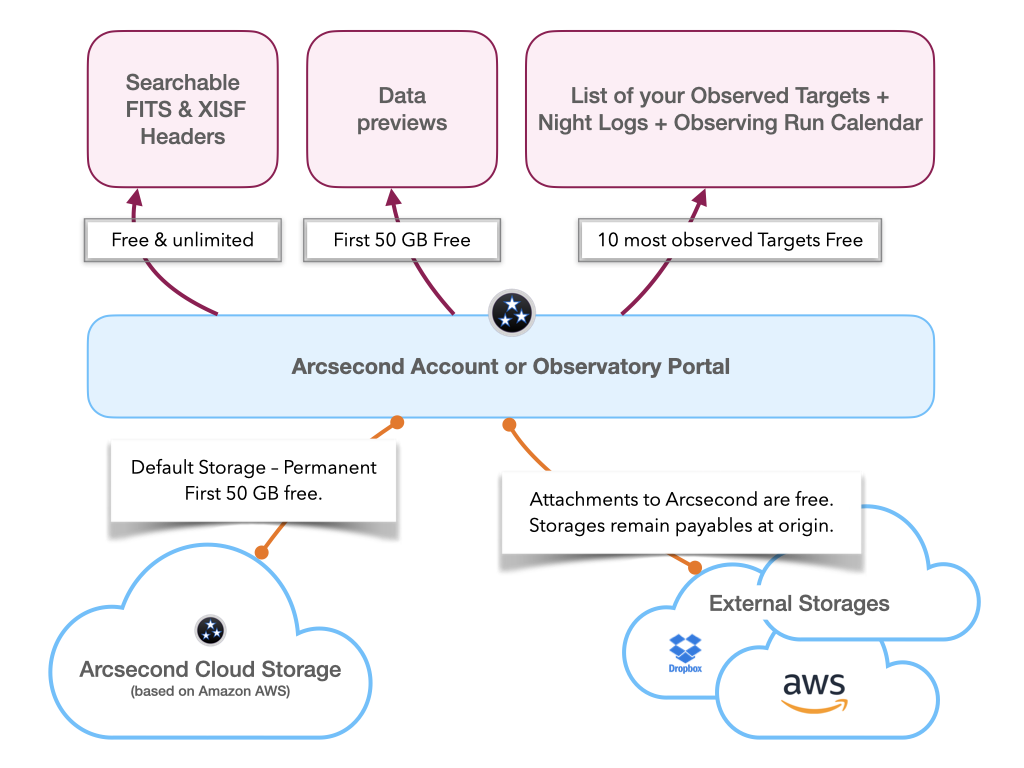
External Storages are data storages you already own — as an astronomer or as an observatory — attached to Arcsecond.local so that their content is indexed alongside the data the installation holds itself. There is no limit on the number of storages you can attach.
Attached storages are read-only for indexing: Arcsecond.local never modifies anything in them. Some kinds can also serve as the destination of new data on a self-hosted installation, in which case Arcsecond writes inside a folder of its own on that storage, Arcsecond/, and nowhere else. Credentials are provided once, then stored encrypted — see Credentials & Security.
Which storages
The table is what the code supports today, not a roadmap.
| Storage | Indexed | Can hold new data | Credentials |
|---|---|---|---|
| Amazon S3 | yes | yes | AWS_ACCESS_KEY_ID, AWS_SECRET_ACCESS_KEY, AWS_REGION, AWS_S3_BUCKET_NAME — see Creating a read-only IAM user |
| Dropbox | yes | no | an app access token, and the root folder |
| FTP | yes | no | host, port, user, password, root folder |
| SFTP | yes | yes | host, port, user, a password or a private key (with its passphrase), root folder |
| SMB / Windows share | yes | yes | host, port, share name, domain, user, password, root folder |
| Local disk (a folder on the machine) | not yet | — | — |
What is not available
Azure, Google Drive and observatory archives (ESO, CADC, HST…) were listed as choices in earlier versions of these pages and of the application. No backend ever existed for them: a scan of one did nothing, silently. They have been removed from both. Ask us if you need one.
Amazon S3
Create a dedicated IAM user with a read-only policy on the bucket, and hand Arcsecond its access key, secret key, region and bucket name. The full click-by-click procedure is on its own page: Creating a read-only IAM user for a bucket.
Dropbox
- Log in to Dropbox and open the App Console.
- Create an app, with Scoped Access for the API.
- Choose Full Dropbox for the type of access, and give Arcsecond a root folder instead: it restricts itself to that folder. (With App Folder, the data Arcsecond reads must be placed under that app's folder.)
- Name the app and create it. In its Settings tab, scroll to OAuth2 and click Generate next to Generate access token.
- Paste that token, and the root folder, into the Dropbox credentials form in Arcsecond.
FTP
Host, port, user, password and the root folder to index. FTP carries credentials in clear over the network: on anything but a trusted LAN, prefer SFTP.
SFTP
Host, port, user and the root folder, plus either a password or a private key — with its passphrase if it has one. SFTP is the recommended way to reach a server you do not control the network to, and an SFTP storage can also hold the installation's new data.
SMB / Windows share
The natural choice for an observatory NAS or a Windows machine sharing a folder: host, port (445 by default), the share name, the domain if the share is on one, user, password, and the root folder inside the share. An SMB storage can also hold the installation's new data.
Local disk
A folder on the machine running Arcsecond.local is not attachable yet. Share the folder over SMB, or serve it over SFTP, and attach that instead.
What happens once a storage is attached
Arcsecond.local scans and parses the content of an external storage exactly as it does for the data stored on the installation itself:
- FITS and XISF headers are extracted, for searching in the web interface,
- 2D-image and 1D-spectrum previews are generated,
- your list of follow-up targets is built from everything the installation holds and every storage you attached, each target with its data,
- observing nights are reconstructed when the headers allow it.
INFO
An option to restrict the scan to specific folders is in the works.